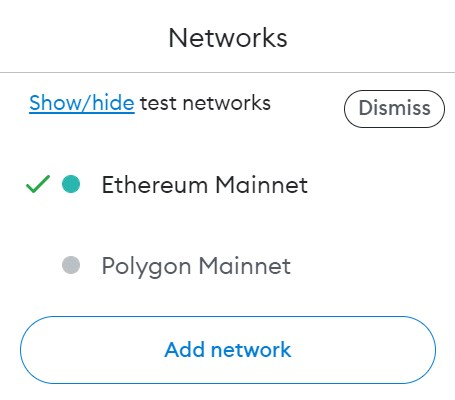
Add SECRYPT Network
In order to view the flow of funds in your accounts, on the SECRYPT Network, you will need to configure SECRYPT testnet and mainnet URLs on Metamask.
There are two ways to do it:
- Using SECRYPT Explorer
- Add the SECRYPT network manually
TIP
Find a tip at the end of this article on how to easily add SECRYPT Mainnet to Metamask.
Using SECRYPT Explorer
NOTE
Please make sure you have already installed and setup Metamask
- SECRYPT-Mainnet
- SECRYPT-Testnet
Please follow the steps to add SECRYPT’s Mainnet:
- Navigate https://explorer-testnet.secrypt.tech/
- Scroll down to the bottom of the page and click on the button Add SECRYPT Network
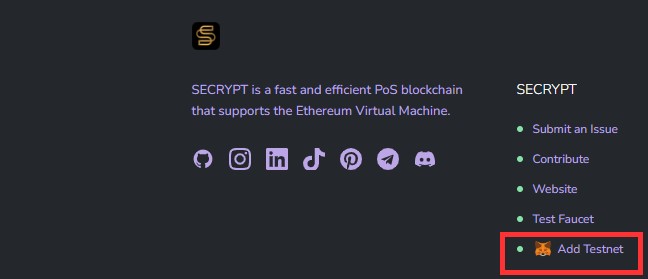
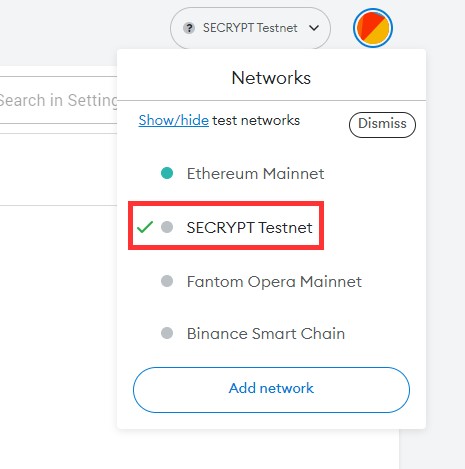
- Once you click the button you will see a Metamask Notification, now click on Approve. You will be directly switched to SECRYPT s Mainnet now in the network dropdown list. You can now close the dialog.
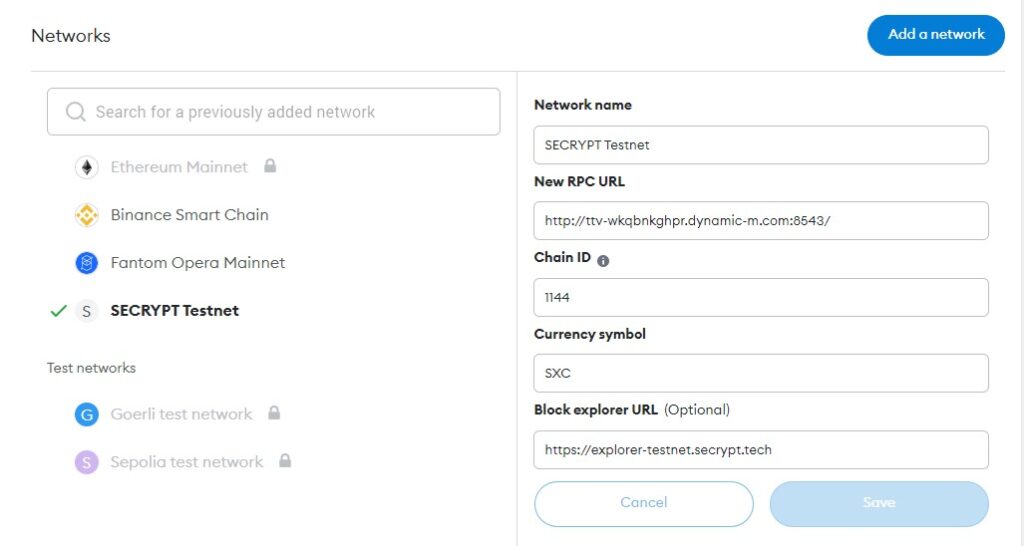
If you are facing any issue, add the network manually according to the steps given below.
Add the SECRYPT network manually
- SECRYPT -Mainnet
- SECRYPT-Testnet
To add SECRYPT’s Mainnet, click on the Network selection dropdown and then click on
It will open up a form with 2 tabs on the top, Settings and Info. In the Settings tab you can add SECRYPT Mainnet in the Network Name field, URL https:// SECRYPT -rpc.com/ in the New RPC URL field, 137 in Chain ID field, SXC in Currency Symbol field and https:// SECRYPT scan.com/ in Block Explorer URL field.
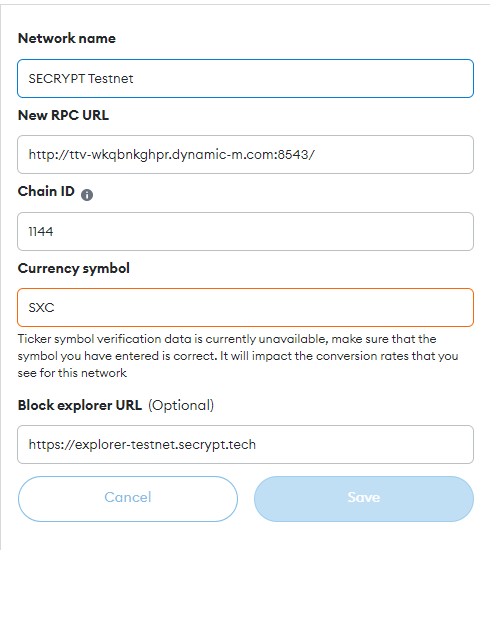
Once you’ve added the information click on Save. You will be directly switched to SECRYPT’s Mainnet now in the network dropdown list. You can now close the dialog.
You have successfully added SECRYPT Network to your Metamask!
EASY WAY TO ADD SECRYPT MAINNET
If you just need to add SECRYPT Mainnet, you can follow these steps:
- On Metamask, select the Network tab:
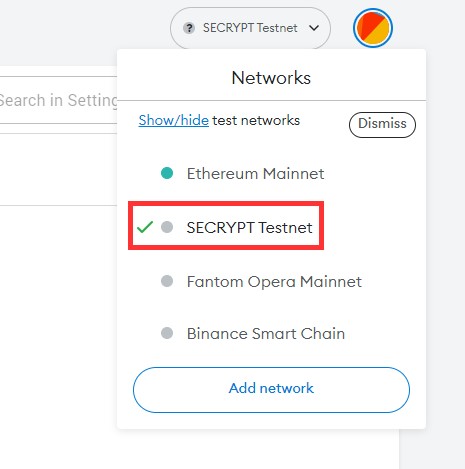
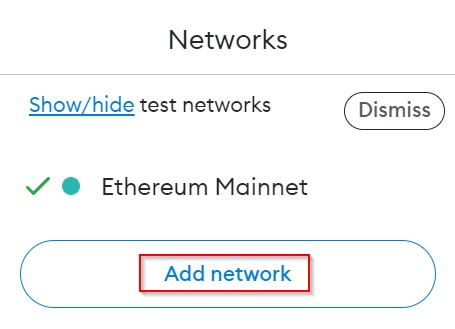
2.Click on Add Network:
3. Find SECRYPT Mainnet on the list of available networks:
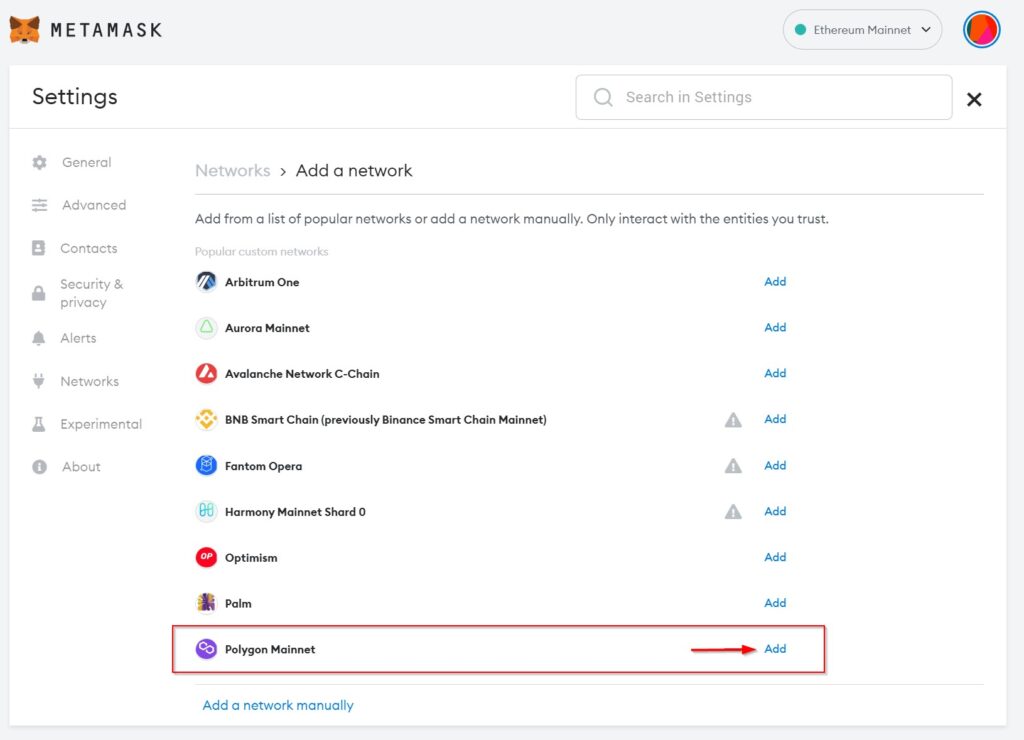
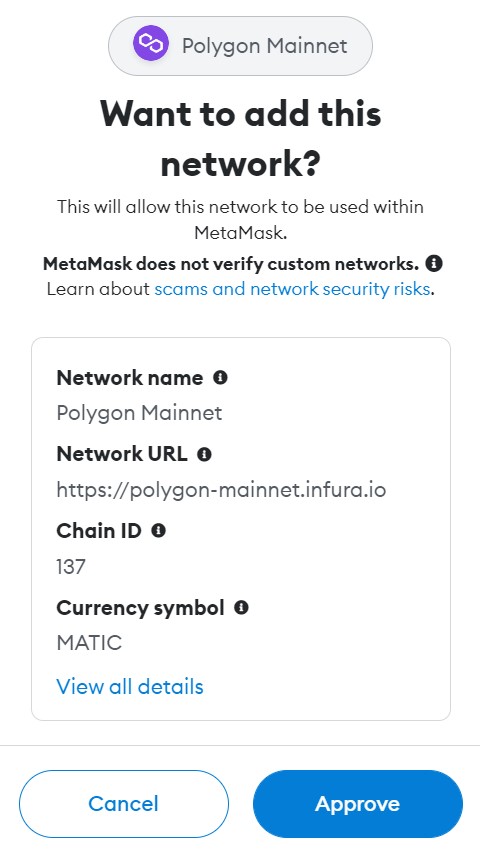
4. Approve the network addition:
Now you may see the SECRYPT Mainnet on the Networks tab: